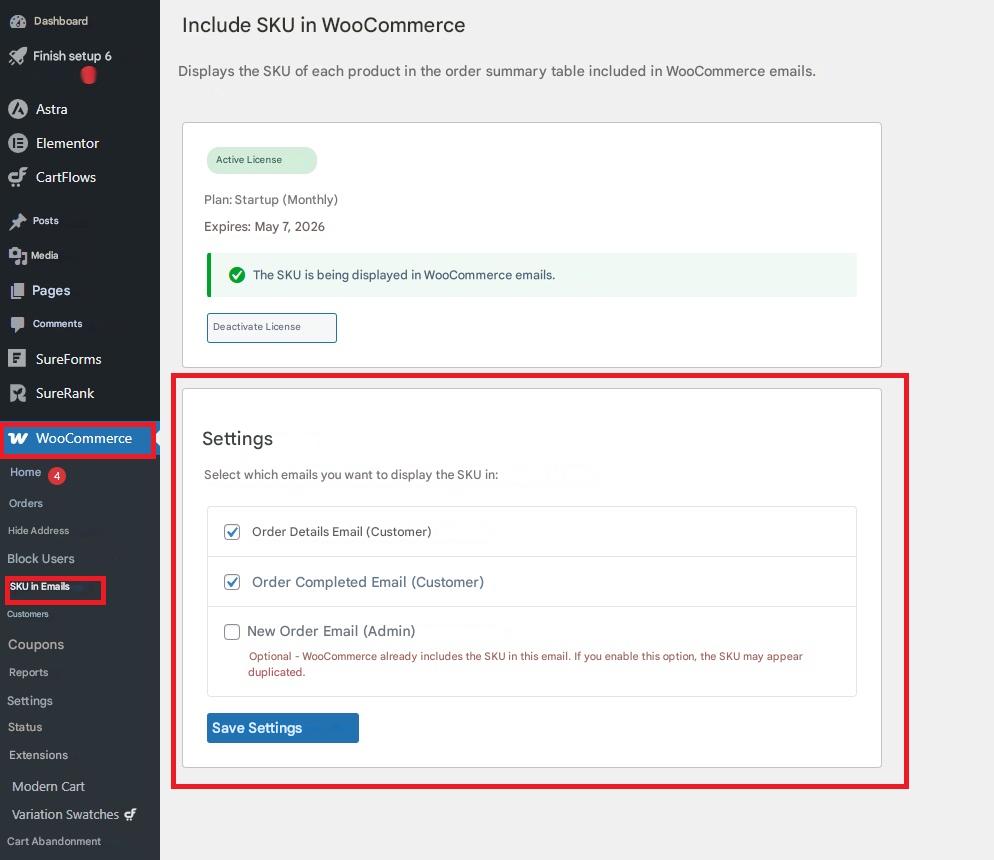
Product overview
This feature allows you to display the SKU of each product in WooCommerce emails, making it easier to identify items, reducing errors, and optimizing order and inventory management. You can also choose which emails to display the SKU in: order details email, order completion email, and reorder email. This functionality improves internal organization and streamlines the management process for your online store.
Installation
Before you begin, make sure you have WooCommerce installed and active , as this plugin works within its environment.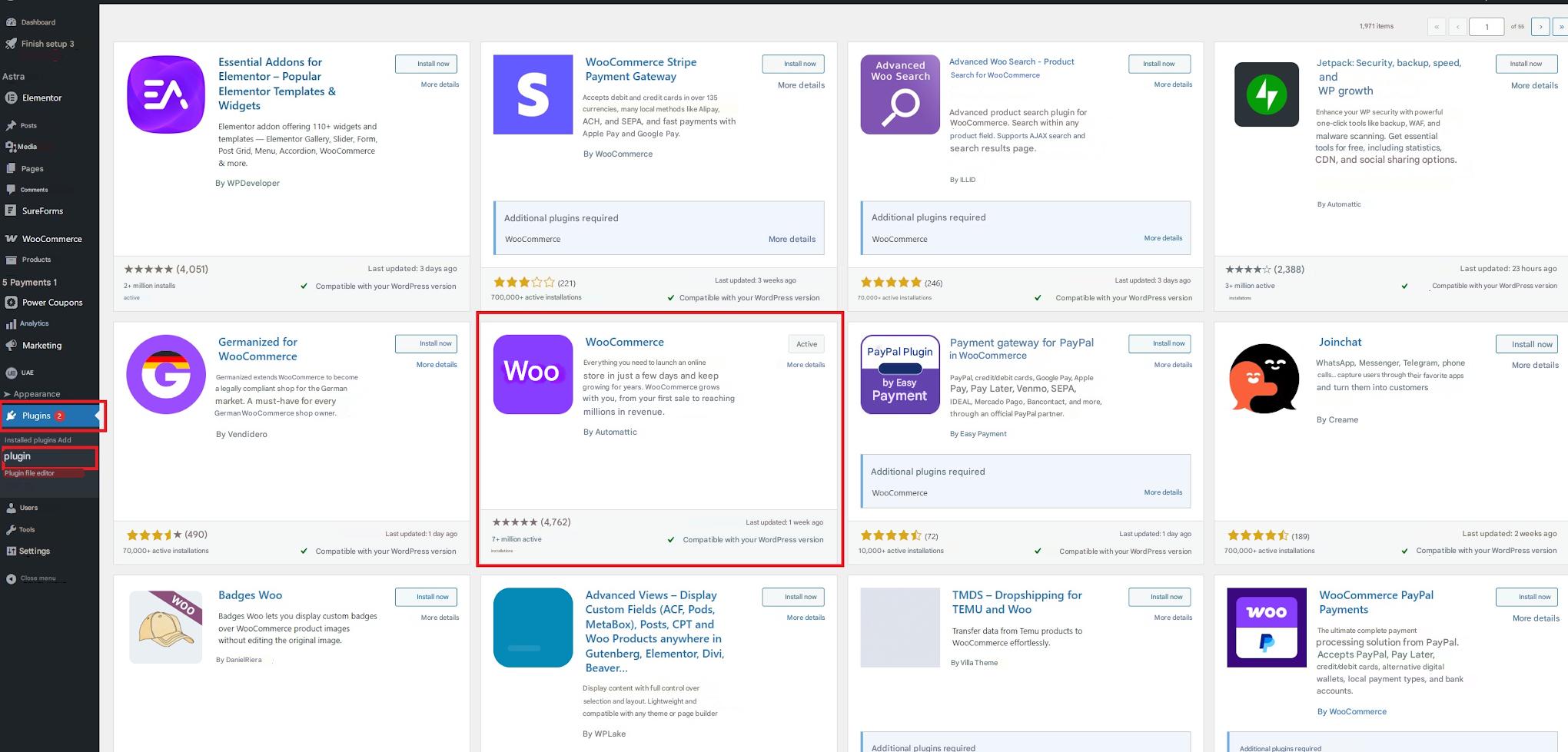
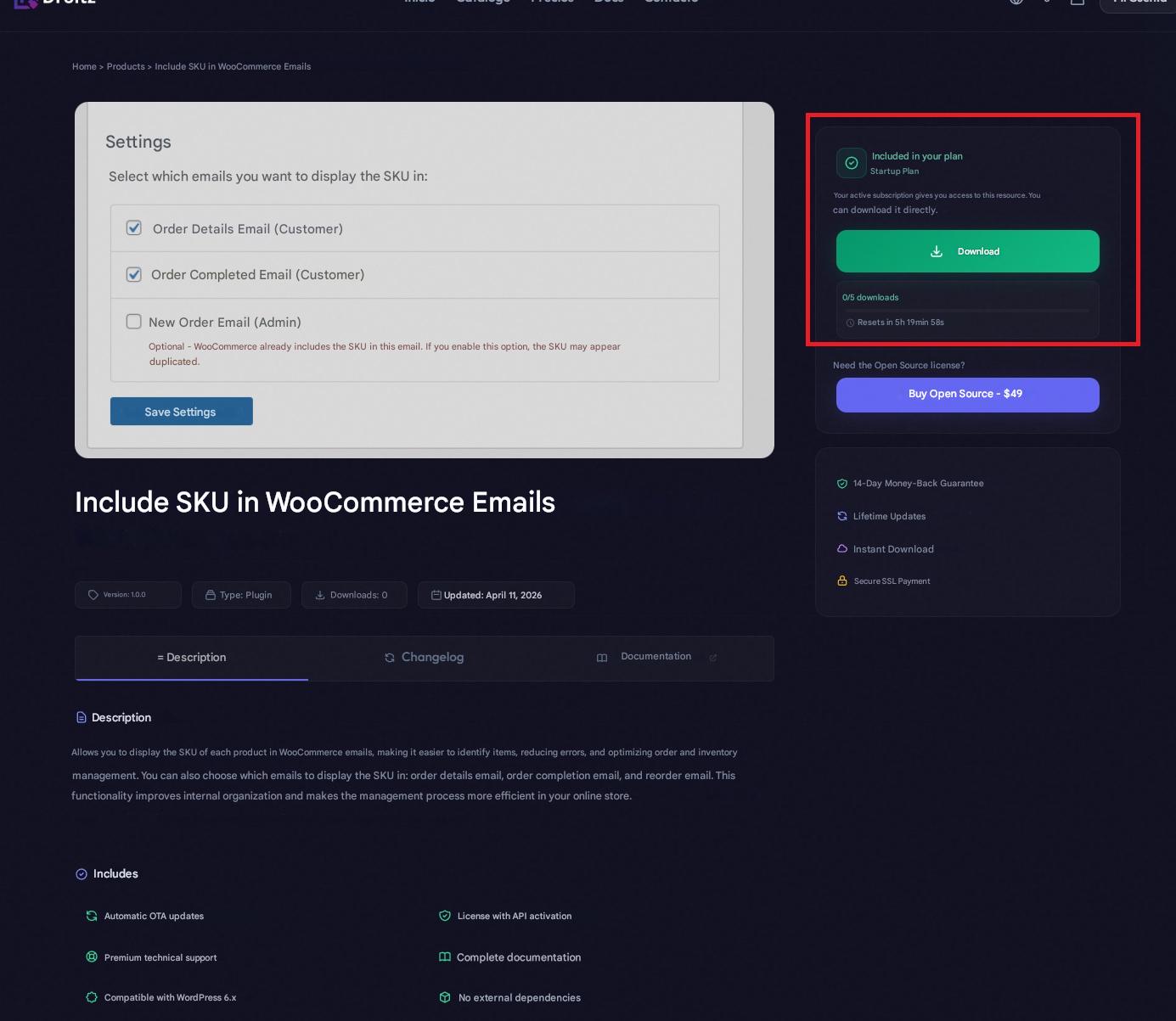
- Download the plugin file in .zip format after purchasing the license.
- In your WordPress dashboard, go to Plugins → Add New → Upload Plugin .
- Select the .zip file and click Install now .
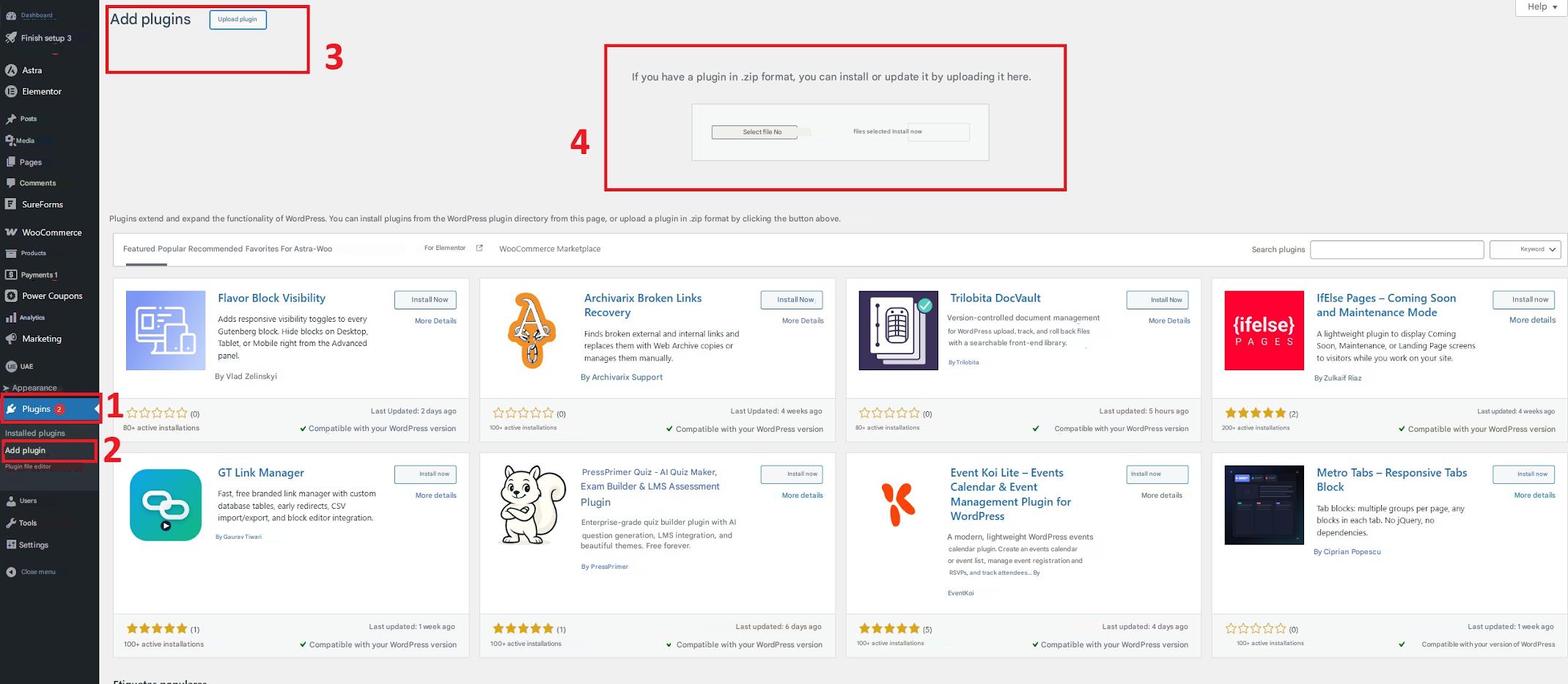
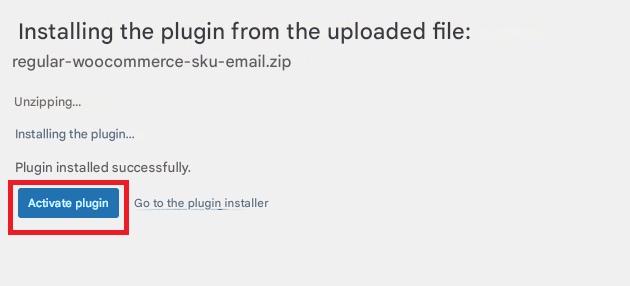
- Once installed, click on Activate plugin .
License activation
- Go to WooCommerce → SKU en Emails in your WordPress dashboard.
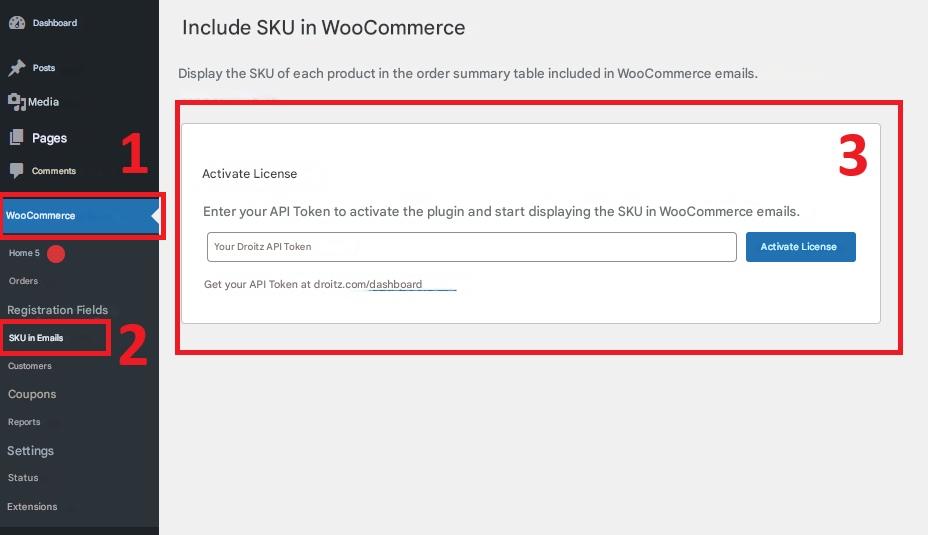
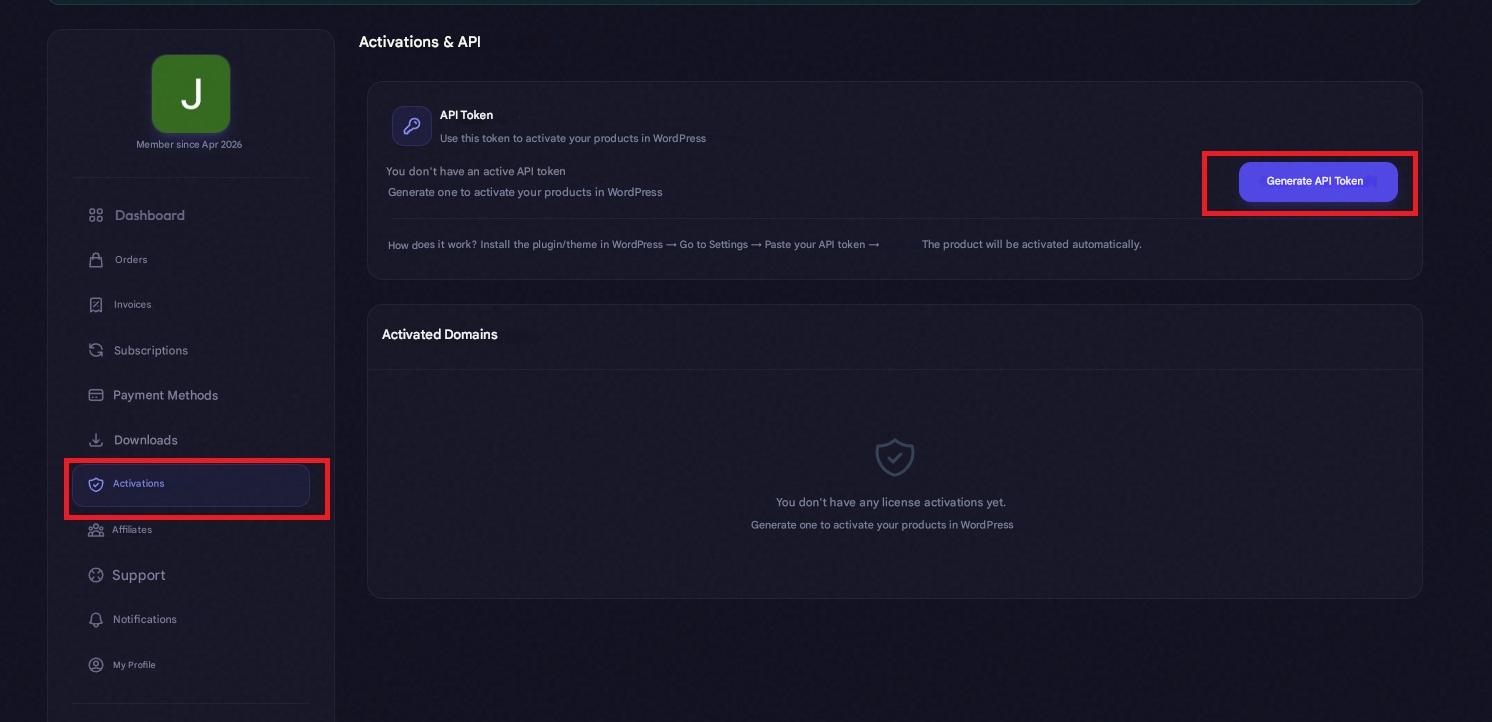
- Access your user panel at: droitz.com/dashboard .
- Go to the Activations section and generate your API Token.
- Copy the token and paste it into the corresponding field within WordPress.
- Click on Activate .
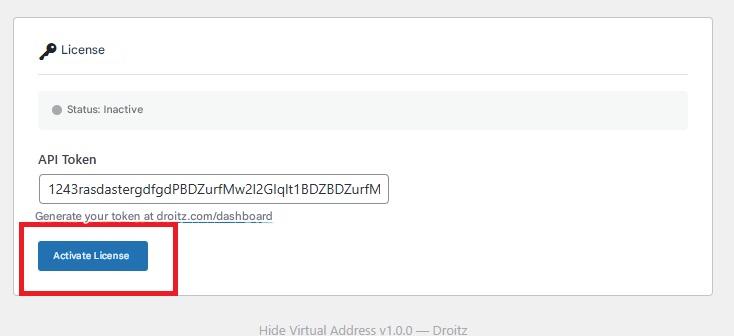
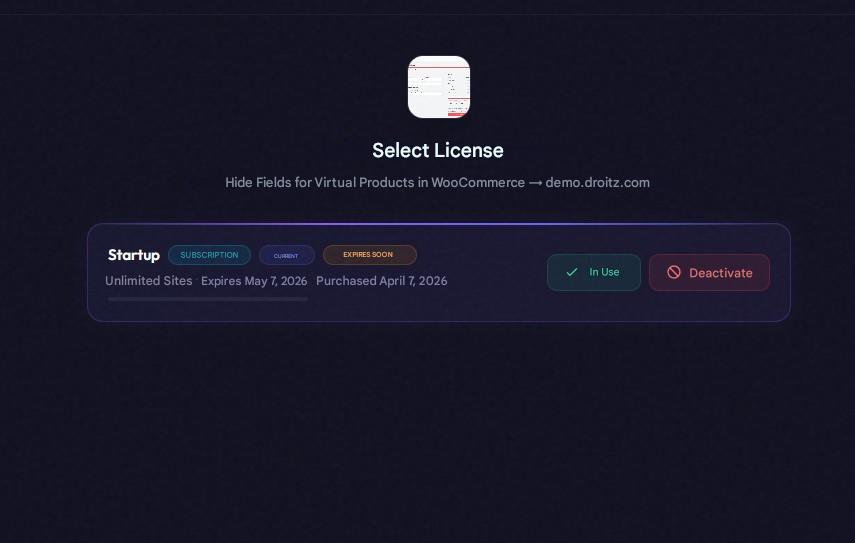
- Select the purchased license to complete the process.
How to use the plugin?
- Go to WooCommerce → SKU in Emails to configure the available options. Select only the ones you want to use:
- You just need to select which options you want to use.
-
- Order details email (Customer): Include the SKU in the email the customer receives when placing the order.
- Order completed email (Customer): Send the SKU when the order is marked as completed.
- New order email (Administrator): This option is optional, as WooCommerce already includes the SKU in this email. If you enable it, it may appear duplicated.
3. After completing the configuration, we press save.